

1
Install the SDK
Run the following command in your terminal:In your LLM app, initialize the Traceloop tracer like this:
2
Log your prompts
3
Configure trace exporting
Lastly, you’ll need to configure where to export your traces.
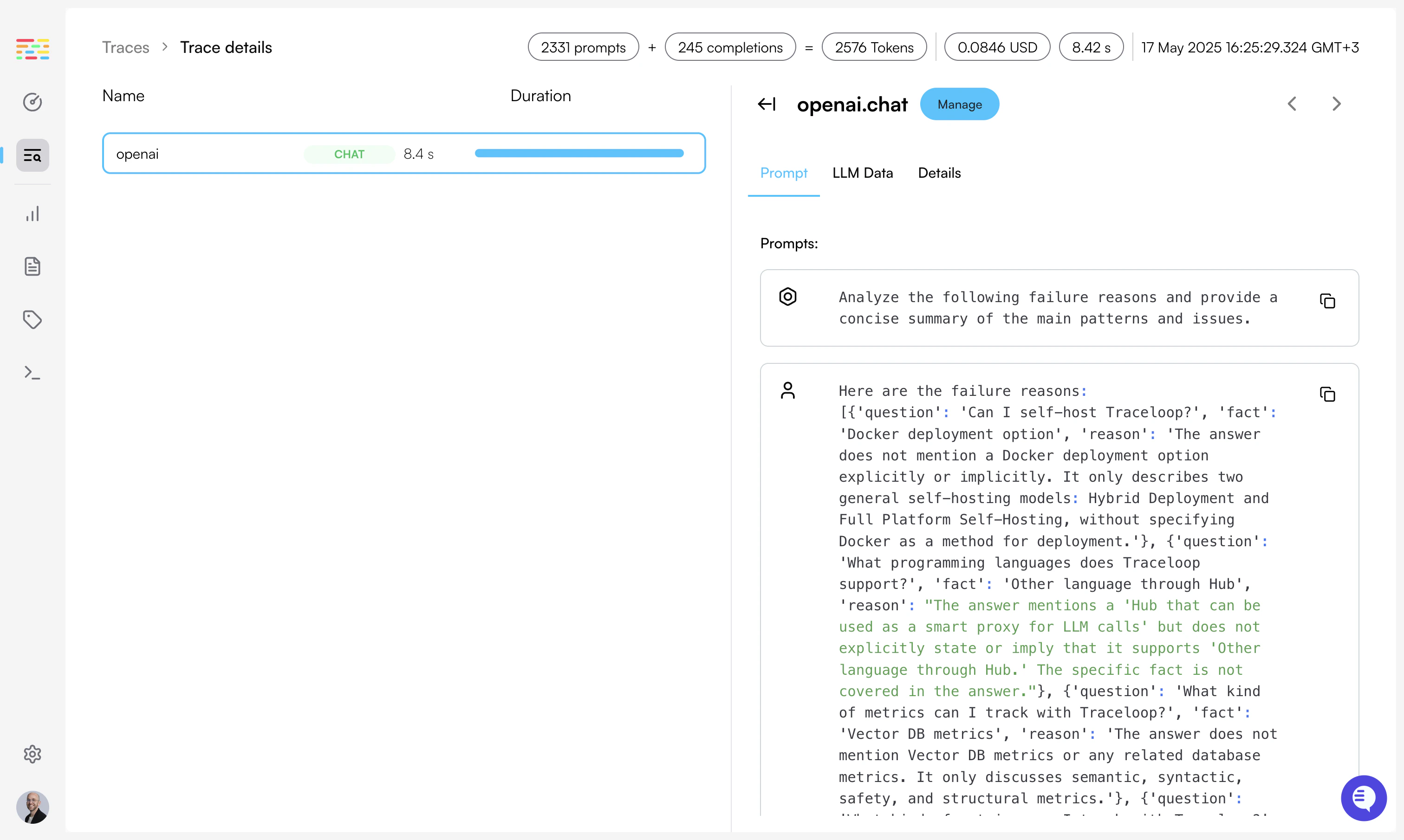
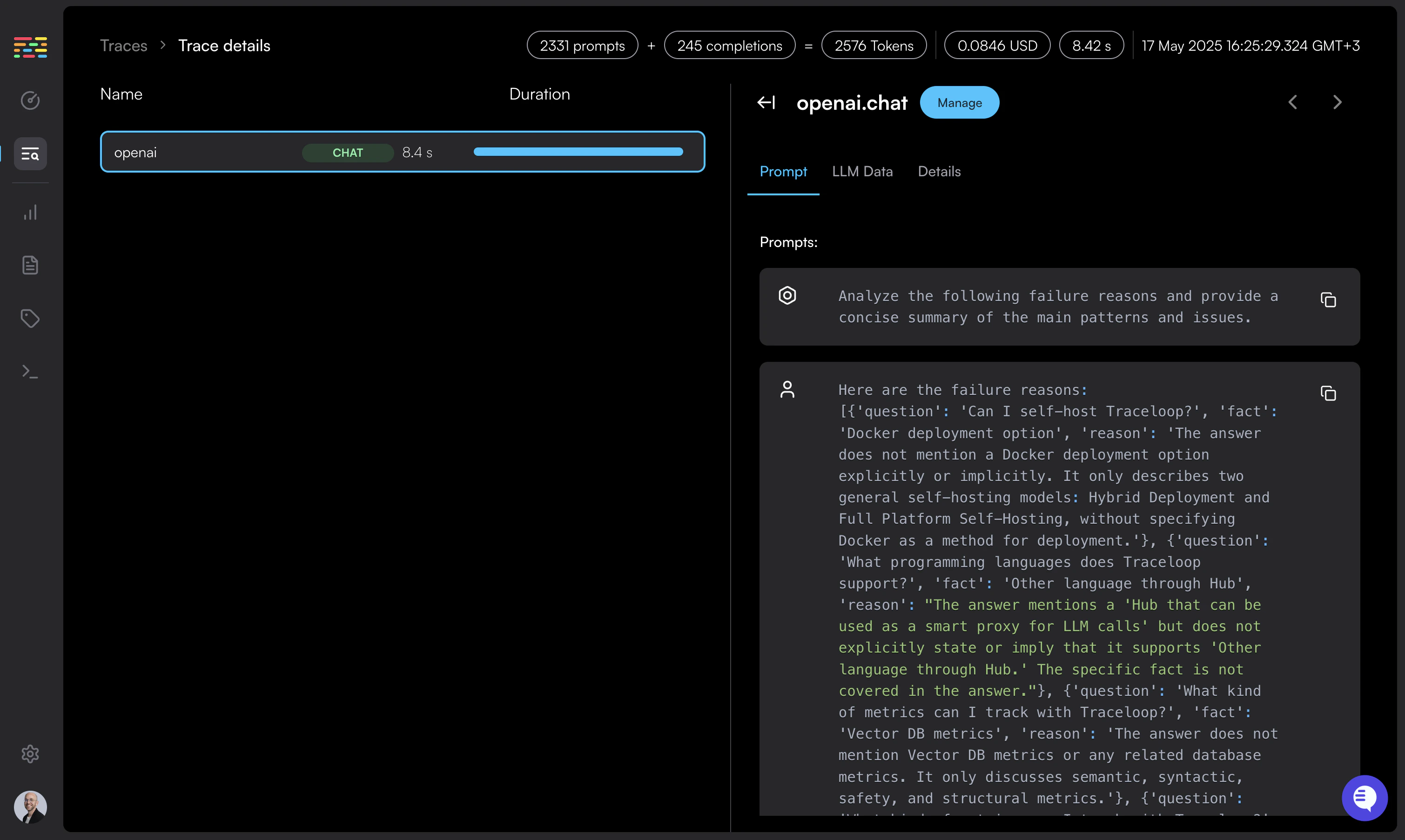
The 2 environment variables controlling this are Set the API key as an environment variable in your app named Done! You’ll get instant visibility into everything that’s happening with your LLM.
If you’re calling a vector DB, or any other external service or database, you’ll also see it in the Traceloop dashboard.
TRACELOOP_API_KEY and TRACELOOP_BASE_URL.For Traceloop, read on. For other options, see Exporting.Using Traceloop Cloud
You need an API key to send traces to Traceloop.
Generate one in Settings by selecting
a project and environment, then click Generate API key.⚠️ Important: Copy the key immediately - it won’t be shown again after you close or reload the page.Detailed instructions →
TRACELOOP_API_KEY: